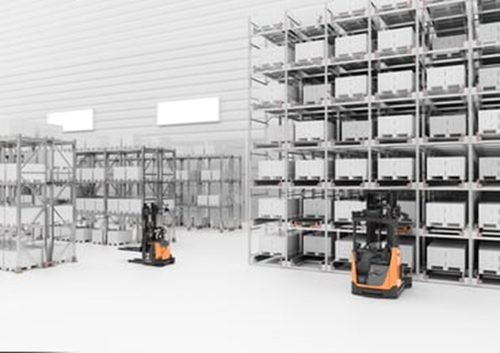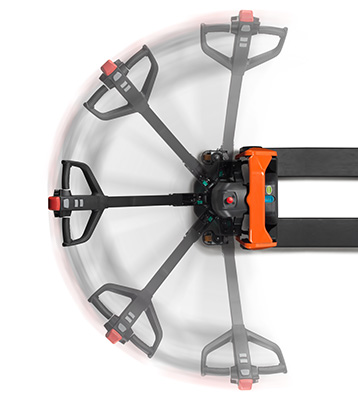
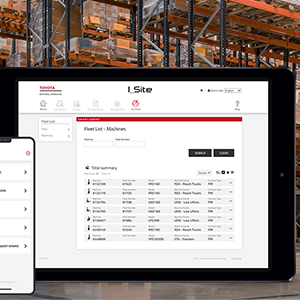


Icon row block - Heading 1
The icons section block can hold icon row blocks.

Different types of normal content blocks.
A specific block that allows you to add + icons on top of a Epi-picture (not available in Qbank) which opens up small blocks in a pop-up with picture, text and link.


In this example;
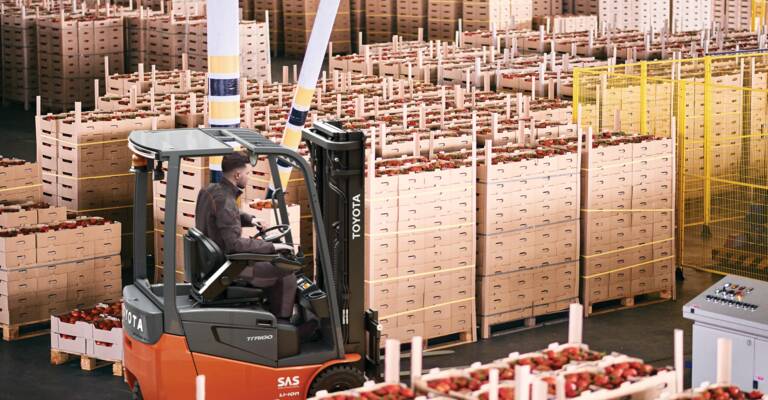
Here is a large block with only a subheading in H3, and the image on the left side.
No CTA buttons, but a text link directly in the text editor.
Padding is enabled, so see the difference between white space above and below this block.
The optimal number of characters to get the text as the same height as the image is 1000 characters when using the H3 subheading.
Without a subheading, it's about 1300 characters.
And the definition of characters, copied from Wikipedia is: letters, numerical digits, common punctuation marks (such as "." or "-"), and whitespace.
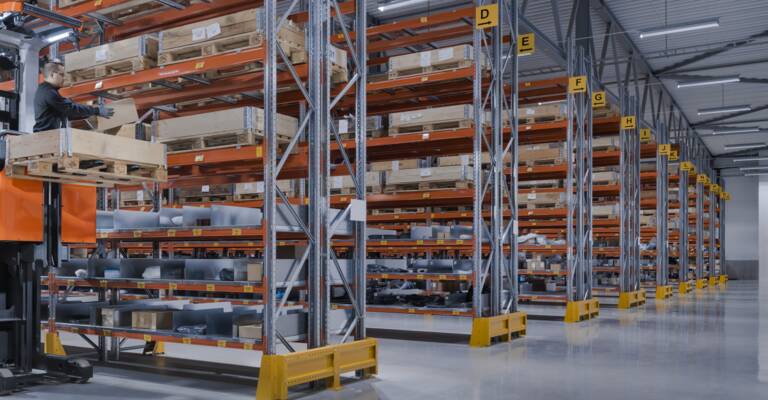
In this example, we are using 33 % splitter layout to shrink the block height.
Just plain text and a small image.
The optimal amount of characters with subheading is 600, and without subheading it is around 1000 characters.
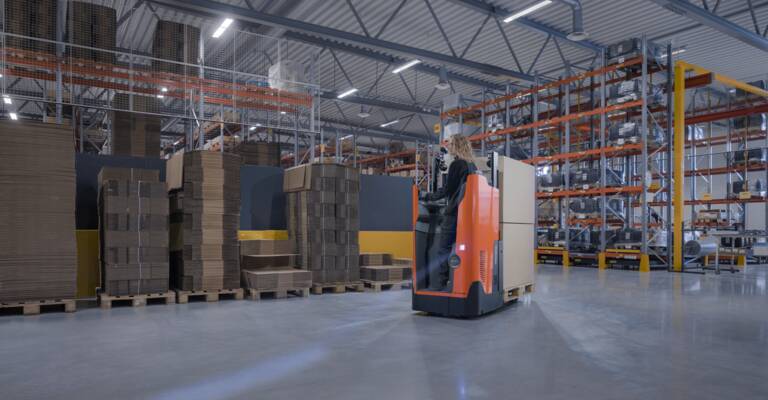
In this example:
Could be used as an introduction if you have three Small blocks, but want to create a whole row of four small blocks.
In this example we have set up the most common settings:
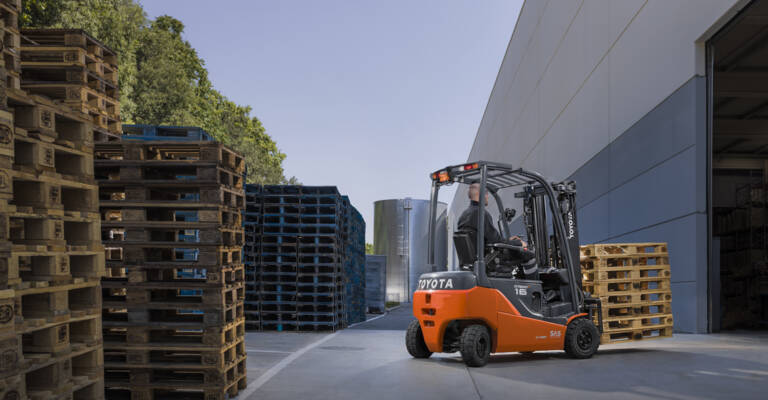
In this example:
In this example:
The optimal number of characters is hard to say. The most important thing is to have equal number of the small blocks next to eachother, so they align.
So these four are not a great example for that purpose. This is just for showing the different options.
This a wrapper block that 1) clean up your content area by keeping all small blocks in one place 2) gives you the chance to choose if a set of small blocks should have a boarder or not on this page without sabotaging the layout of other pages.
In this example:
Could be used as an introduction if you have three Small blocks, but want to create a whole row of four small blocks.
In this example we have set up the most common settings:
In this example:
In this example:
The optimal number of characters is hard to say. The most important thing is to have equal number of the small blocks next to eachother, so they align.
So these four are not a great example for that purpose. This is just for showing the different options.
The divider block allows you to create centered content. A heading with the options between H1-H3, and also there is a main body text area where you can write an introduction text.
It can also be used to create a centered heading for other block types.
FAQ blocks can be added in the FAQ section block.
It has a text property shown as the question, and a text area for the answer.
The answer area is a text editor, so you are able to add and format text, bullet lists, links and images from Q-bank.
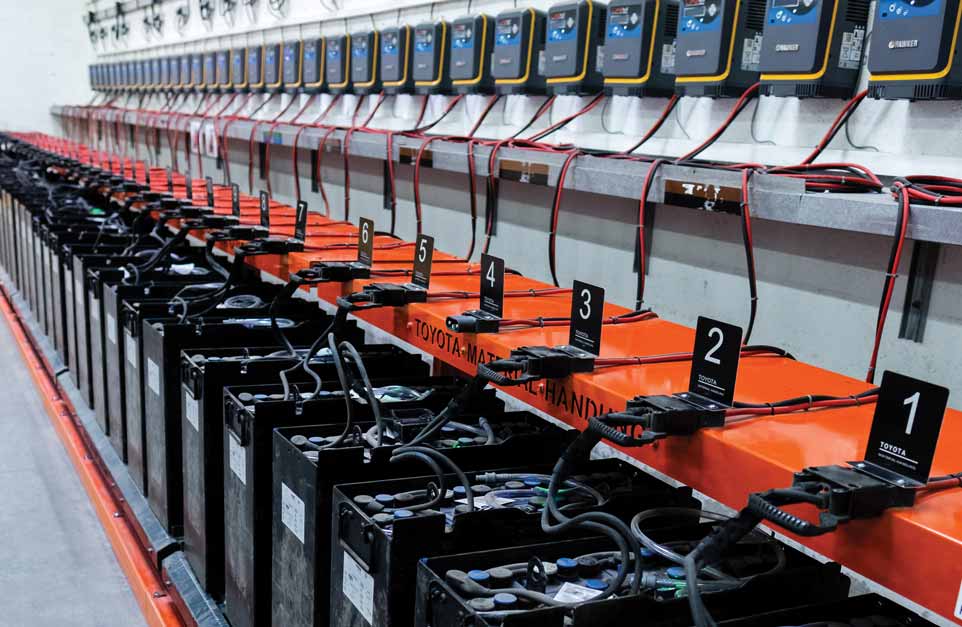
In this example:
On the right side of the FAQ blocks, you are able to add text or Q-bank images inside the text editor. This block still has the old image handling, the property called "Right column image" and "Image", don't use those. It will soon be developed to insert images från Q-bank.
Heading (H1-H3)
This can also be used in main area and not only promotion area. The proportions is a bit different and you'll see more of the video. Heading and text is optional.
This is a mosaic block, which is a block where you can add different block types inside, but mainly it should be used together with mosaic column blocks. In this block we have three mosaic column blocks inside. You can use either 4 blocks that are 1 column wide, or 2 blocks that are 2 columns wide to create a row. You can have more rows as well.
Mosaik column block 2 - without link

In this block you can use a H1 heading, a big image, and some text and a link in a text box that is on the left side. Not that much opacity.
In this example;
Here is a large block with only a subheading in H3, and the image on the left side.
No CTA buttons, but a text link directly in the text editor.
Padding is enabled, so see the difference between white space above and below this block.
The optimal number of characters to get the text as the same height as the image is 1000 characters when using the H3 subheading.
Without a subheading, it's about 1300 characters.
And the definition of characters, copied from Wikipedia is: letters, numerical digits, common punctuation marks (such as "." or "-"), and whitespace.
Here is a large block with only a subheading in H3, and the image on the left side.
No CTA buttons, but a text link directly in the text editor.
Padding is enabled, so see the difference between white space above and below this block.
The optimal number of characters to get the text as the same height as the image is 1000 characters when using the H3 subheading.
Without a subheading, it's about 1300 characters.
And the definition of characters, copied from Wikipedia is: letters, numerical digits, common punctuation marks (such as "." or "-"), and whitespace.
In this example;
In the Main Body property in Epi/Optimizely, you can write a short introduction or an explanation to what the visitors can expect from the map.
Can be used to show a pin on a map.
We use it mainly for showing our factories and sales offices around the world.
But if you are creative, you can probably find other uses for it as well.
You can create links in the text editor, or use the link property.
Overlay Text is a text area where you can write even more information. This is shown when no map pin is selected, because there you can write other information, and insert links. There are four different colors of pins, and you can name them in the bottom of the map block settings.
In this example:
Could be used as an introduction if you have three Small blocks, but want to create a whole row of four small blocks.
In this example we have set up the most common settings:
In this example:
The optimal number of characters is hard to say. The most important thing is to have equal number of the small blocks next to eachother, so they align.
So these four are not a great example for that purpose. This is just for showing the different options.
In this example;
In this example:
Could be used as an introduction if you have three Small blocks, but want to create a whole row of four small blocks.
In this example we have set up the most common settings:
In this example:
The optimal number of characters is hard to say. The most important thing is to have equal number of the small blocks next to eachother, so they align.
So these four are not a great example for that purpose. This is just for showing the different options.
In this example:
Could be used as an introduction if you have three Small blocks, but want to create a whole row of four small blocks.

Product blocks can be used to show products from all our categories. Just drag in products from the catalog. The block can be used on start page, content pages or in the jumplinks for product category pages. Preferrably to be used together with a divider block, to get a centered heading above. A link can be added as well, shown as a button or plain text.
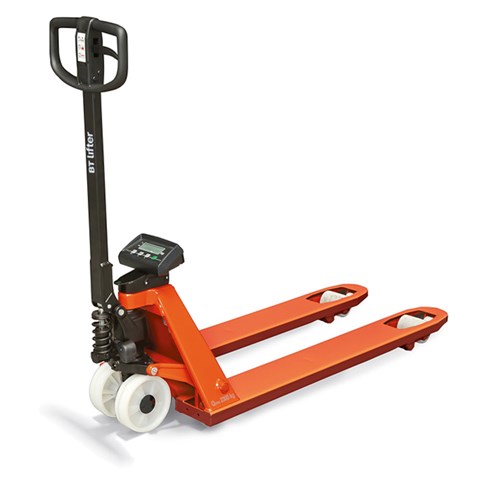
Toyota Lifter / Yük Göstergeli


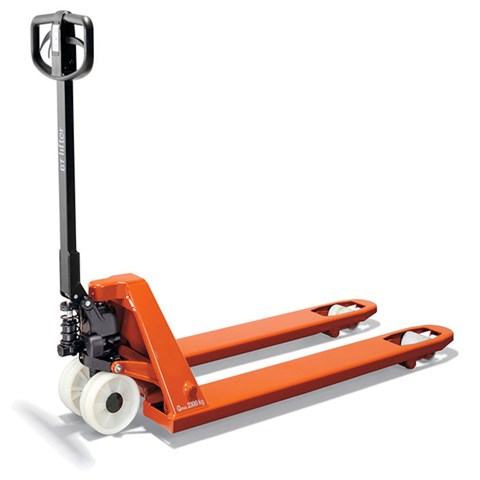
Toyota Quick Lifter / El Frenli
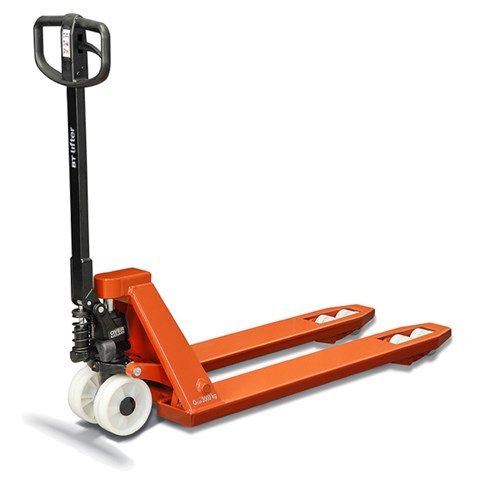
Toyota Heavy Lifter
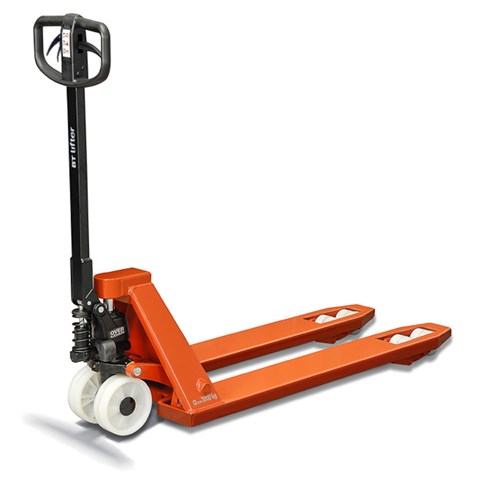
Toyota Heavy Lifter / El Frenli
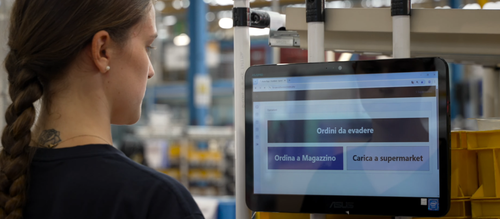
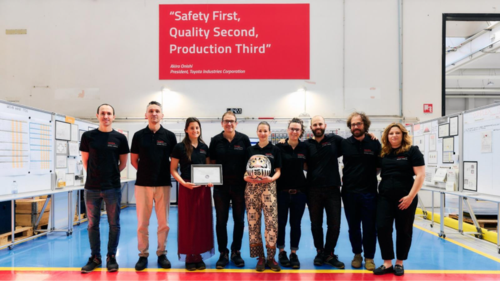

You could use this block to highlight two different benefits in text,
and with different background colors to make them pop.
You could use this block to highlight two different benefits in text,
and with different background colors to make them pop.
You could use this block to highlight two different benefits in text,
and with different background colors to make them pop.
You could use this block to highlight two different benefits in text,
and with different background colors to make them pop.
You could use this block to highlight two different benefits in text,
and with different background colors to make them pop.
You could use this block to highlight two different benefits in text,
and with different background colors to make them pop.
You could use this block to highlight two different benefits in text,
and with different background colors to make them pop.
You could use this block to highlight two different benefits in text,
and with different background colors to make them pop.
You could use this block to highlight two different benefits in text,
and with different background colors to make them pop.
You could use this block to highlight two different benefits in text,
and with different background colors to make them pop.
You could use this block to highlight two different benefits in text,
and with different background colors to make them pop.
You could use this block to highlight two different benefits in text,
and with different background colors to make them pop.

Here you could add additional information about your sales team.
Or just making the contact form a bit more personal with a face next to it.
In this example we have set up the most common settings:
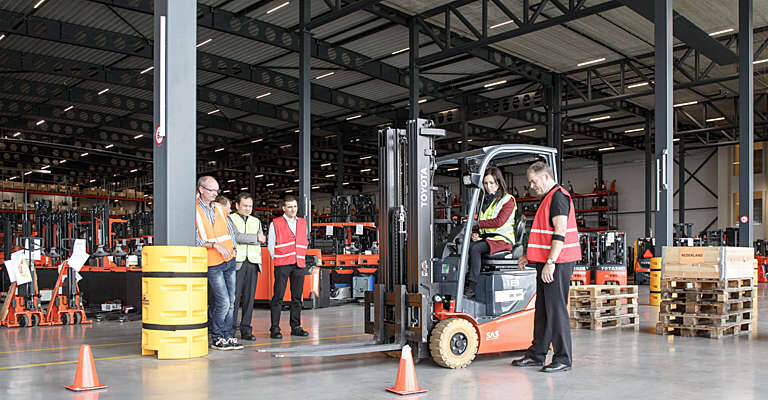
You can also of course use small blocks to promote trainings, other solutions, or in principle anything else on your site that you believe would be valuable to the visitor.
In this example we have set up the most common settings:
hubspot_50_50
You can embed your HubSpot forms with this block. You can choose to have it on the left or the right side, by inserting the embed code for the HubSpot form in the HubSpot code snippet property.
And you will also be able to add an image or text on the other side of the form.
In the Main Body property in Epi/Optimizely, you can write a short introduction or an explanation to what the visitors can expect from the map.
Can be used to show a pin on a map.
We use it mainly for showing our factories and sales offices around the world.
But if you are creative, you can probably find other uses for it as well.
You can create links in the text editor, or use the link property.
Overlay Text is a text area where you can write even more information. This is shown when no map pin is selected, because there you can write other information, and insert links. There are four different colors of pins, and you can name them in the bottom of the map block settings.
Test
Toyota Material Handling Austria GmbH
Griesfeldstrasse. 3, A-2351 Wiener Neudorf
Download:
Toyota Material Handling Belgium NV/SA
Schoondonkweg 1, 2830 Willebroek
Toyota Material Handling CZ s.r.o.
K Vypichu 1049, 252 19 Rudná u Prahy
Toyota Material Handling Danmark
Industrivej 3, 3550 Slangerup
Toyota Material Handling Baltic Branch Estonia
Scala City, Tartu mnt. 43, 10128 Tallinn
Download:
Toyota Material Handling Finland Oy
P.O. Box 12, Korpivaarantie 1, FI-01450 Vantaa
Toyota Material Handling France
Parc Gustave Eiffel, 4, avenue de l'Europe,
77607 Marne La Vallée Cedex 3
Toyota Material Handling Greece SA
2nd str. Olympic Shooting Center, 190 03 Markopoulo, Attica, Greece
Download:
Toyota Anyagmozgatás Magyarország Kft.
Építész u. 28, H-1116 Budapest
Toyota Material Handling Italia S.r.l.
Via del Lavoro, 93/1, 40033 Casalecchio di Reno, Bologna
Download:
ISO 9001 - UKAS | ISO 9001 - ACCREDIA | ISO 14001 | ISO 45001 | ISO 50001 | ISO 30415 | UNI PdR 125
Toyota Material Handling Baltic Vilnius Branch
Naugarduko str. 3, Vilnius
Download:
Toyota Material Handling Nederland B.V. Postadres: Postbus 371, 6710 BJ Ede Bezoekadres: Stevinlaan 4, 6716 WB Ede
Download:
BMWT-Keur Duurzame bedrijfsvoering
BMWT-keur Kwaliteitssysteem
VCA 291
EcoVadis
Toyota Material Handling Norway AS
Vuluvegen 331
7563 Malvik
Download:
ISO 14001
TMHNO FOR2011 12 06 nr.1360 Opplæring
TMHNO FOR2011 12 06 nr.1360 Sakkyndig kontroll
EcoVadis
ISO 50001
Toyota Material Handling Polska Sp z o.o.
Jakuba Potockiego 1a
96-313 Jaktorów, Poland
Download:
Toyota Material Handling Romania s.r.l.
Sos. Berceni nr. 104V sector 4, cod 041912, Bucuresti
Download:
ISO 9001
ISO 14001
ISO 37001
ISO 45001
ISO 50001
EcoVadis
Toyota Material Handling Slovensko s.r.o.
Vajnorská 134/B, 831 04 Bratislava
Download:
Toyota Material Handling Spain
Avda. Arrahona, 25 Conjunto C, Pol. Ind. Can Salvatella, 08210 Barberá del Vallés
Toyota Material Handling Sweden
Solna Gate, Hemvärnsgatan 9, 171 54 Solna
Download:
ISO 9001 & 14001 - English
ISO 50001 - English
EcoVadis
Toyota Material Handling UK
706 Stirling Road, Trading Estate, Slough Berkshire, SL1 4 SY
Toyota Material Handling Manufacturing Sweden
Svarvargatan 8, 595 35 Mjölby, Sweden
Certificates download:
ISO 9001, 14001 and 45001
ISO 27001
ISO 50001
Ecovadis
Policies download:
Quality policy
Environmental policy
Occupational health and safety policy
Toyota Material Handling Manufacturing France
Z.A.C. de l'Aeropole, 44150 Ancenis
Download:
Lift Truck Equipment S.p.A
Via Caravaggio, 6, 44020 Ostellato, Ferrara
Download:
ISO 9001
ISO 14001
ISO 45001
ISO 50001
ISO/TS 14067
EcoVadis
Toyota Material Handling Manufacturing Italy
Via Persicetana Vecchia, 10, 40132 Bologna
Download:
ISO 9001
ISO 9001 ITA
ISO 14001
ISO 14001 ITA
ISO 45001
ISO 45001 ITA
ISO 50001
ISO 50001 ITA
EcoVadis
As proof of our local commitment to sustainability, you can download our EcoVadis recognitions and ISO management system certificates using our Europe map.
Following certifications and recognitions have been achieved by at least one of our factories and/or Marketing & Sales Companies: ISO 9001; ISO 14001; ISO 14067; ISO 45001; ISO 50001; ISO 27001; EcoVadis
Blue pins for factories, red pins for our local Marketing & Sales Companies and black pins for our logistics centres.
Using this block you can add smaller scripts to your page. For example, here is a map script from the German market.

Description
Description
If you use the Main body property in Epi /Optimizely, the content will always be placed below the blocks. However, if you only use main body, then it will be visible on top, of course.
 Toyota Material Handling Italia